
Once you have posted your Micro-Internship, it will be reviewed by Parker Dewey. Once approved, it will immediately be visible to applicants. This document contains information about:
- What does awaiting approval mean
- How to view applicants
- How to review and prioritize applicants
- How to send applicants a message to set up an interview or request more information
- How to select one or more Micro-Interns
- How to notify an applicant who was not selected
For a video that explains these sections further, please see our VIDEO Tutorial for Employers: Hiring Contractors.
What does Awaiting Approval mean
Every Micro-Internship that is posted on Parker Dewey is reviewed by our Support Team. When your project is initially posted, it will be denoted as "Awaiting Approval" until this review process has been completed.
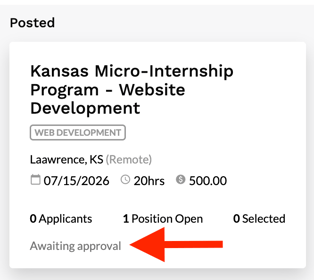
Parker Dewey reviews each project within 2 business days and will follow up with the individual who posted the project if there are any changes needed before the project can be visible to students.
If you do not see "Awaiting Approval" at the bottom of the Micro-Internship when it is listed in the "Posted" column, then it means that the project has been approved.
View Applicants
Navigate to your company dashboard and select your posted project. The project will be listed under the Posted column if you have not selected any applicants. If you have selected one or more applicants but still wish to hire more, you will find the project listed under the In Progress column.

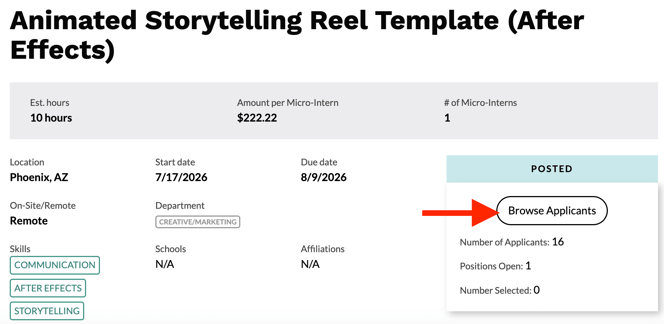
To see a list of all applicants for your project, select Browse Applicants on the right side of your screen. It will be listed under "Posted."
Review and Prioritize Applicants
Each applicant has their own profile. Click on an applicant's name to view their profile. Once you view a profile, you can mark the applicant with "hide" or "favorite" to help you to prioritize applications.
The list of applicants contains several tabs to help you organize the applicants that you wish to "Favorite" or "Hide." Click on the "All" tab to view all applicants.
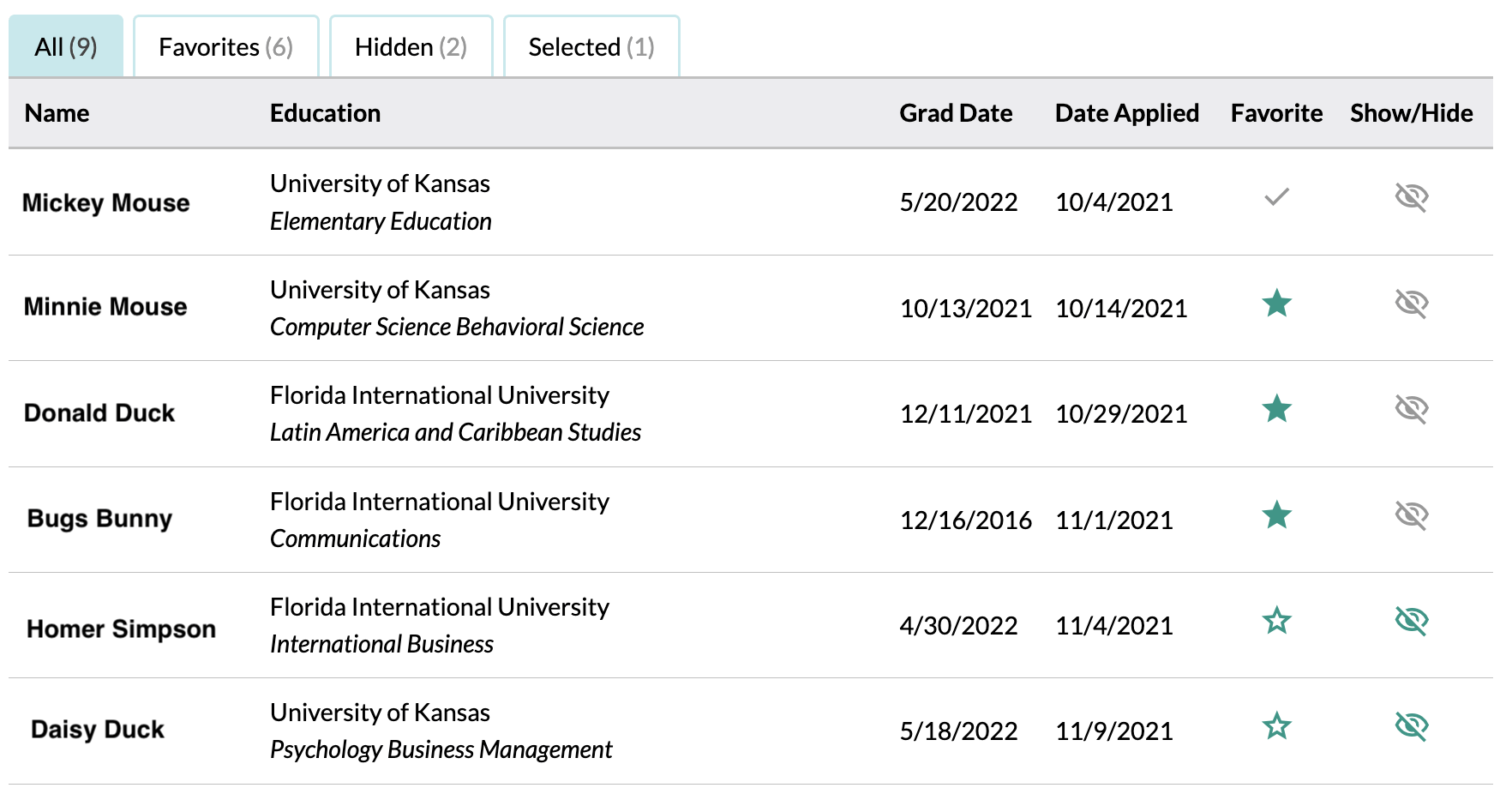
If an applicant has been selected for a project, you will see a check mark next to their name in the Favorite column.
Send an Applicant a Message
If you wish to contact an applicant, you can use Parker Dewey's Messaging feature. You may want to contact an applicant for a variety of reasons including:
- Request additional information
- Set up an interview
- Inquire about whether or not they are interested in a project if the project timeline has changed.
Out of respect for Micro-Interns' privacy, you can only send a message to a Micro-Intern who has applied to your project. You should also limit your communication to the Messaging feature in Parker Dewey and not reach out to a Micro-Intern via email.
To send an applicant a message,
-
Click on your project from your company dashboard.
- Select Browse Applicants.
- Select the Micro-Intern's Name from the list of applicants.
- Select Actions and then select Send a Message.
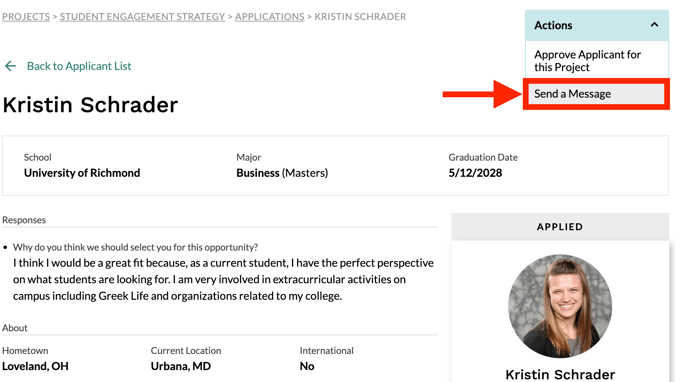
A popup will appear where you can enter your message. An example of a message that was sent by a Parker Dewey client to a Micro-Intern is pictured below to give you an example of how this feature can be used.
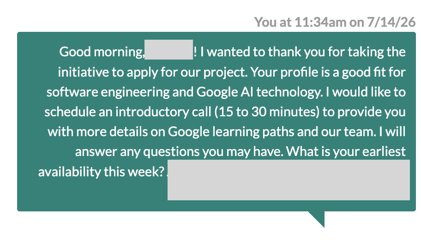
When your message is sent, it will immediately be delivered to the Micro-Intern's email inbox. If they send you a response, you will also immediately receive it to whatever email address you have associated with your Parker Dewey account.
Selecting an Applicant
To select an applicant for your Micro-Internship, click on the applicant's name from the list of applicants. Select Actions and then select Approve Applicant for this project.
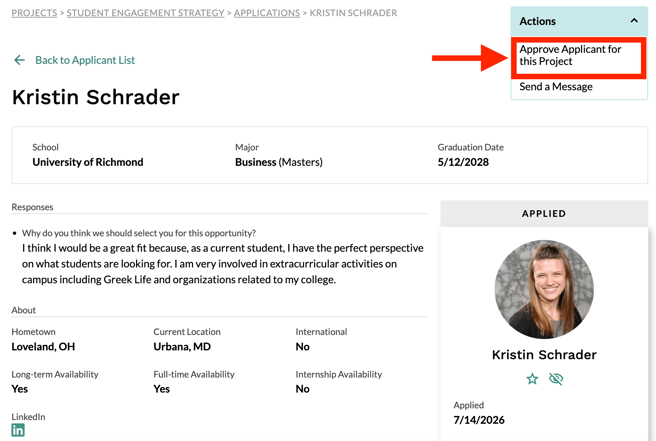
You can repeat this process and select as many Micro-Interns as you wish to work on your project up to the total number of open positions that you selected when posting your project. Your Micro-Internship will be open to new applicants until:
- You have selected the total number of Micro-Interns that you indicated that you want to hire OR
- You stop your project from receiving additional applications.
Click here to edit your posting if you wish to select a different number of Micro-Interns or make additional changes.
Notifying an Applicant Who Was Not Selected
Parker Dewey does not send "rejection" messages to Micro-Interns who are not selected for a project. They can always see if they are still under consideration when they look at their dashboard, but they will not be automatically notified if they are not selected.
If you wish to reach out to an applicant that you did not select, you can do so using the Messaging feature. You can also use this feature if you wish to inform a past applicant about a new Micro-Internship that you post at a later time.