In the following section you will find information about:
- How do I stop receiving new applications to my Micro-Internship?
- How do I share my Micro-Internship with students or others?
- How do I repost a Micro-Internship?
- How do I cancel a project?
These options are all available in the Actions menu for each project. You can watch the video below to learn about each of these actions or use the links above to jump to the section about a specific action.
Edit an Existing Micro-Internship
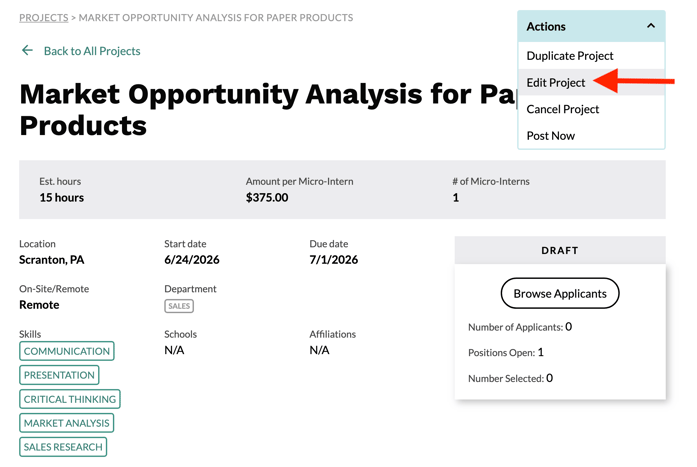
In your dashboard, click on the project you wish to edit. On the next screen, click on the Actions menu in the upper right corner of your screen and select Edit Project.
All of the fields from your original posting are available for editing. Edit your posting as needed. When you are finished, select SAVE at the bottom of the screen.
NOTE: These edits do not auto-save so be sure to select SAVE at the end of your session.
Pause New Applications
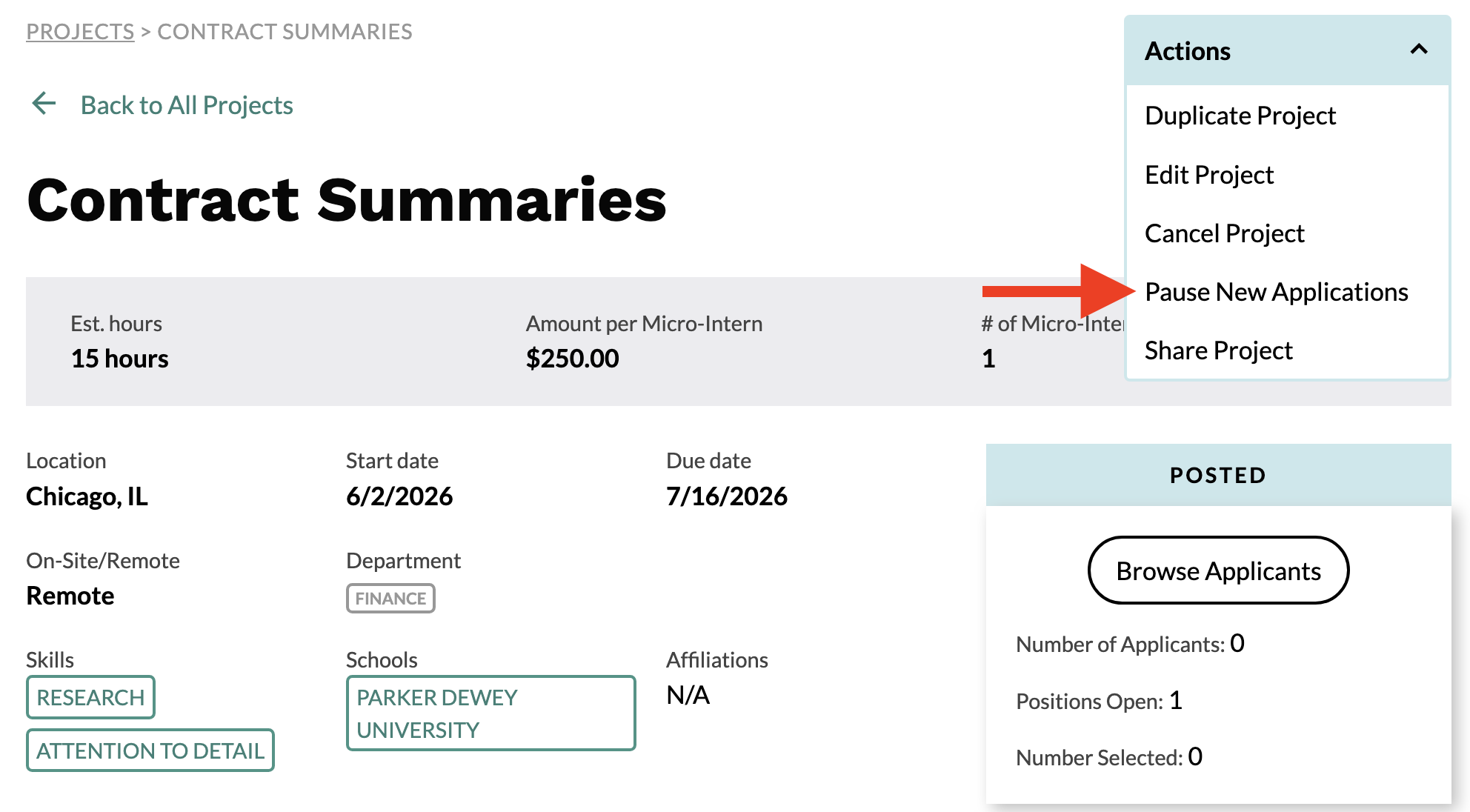
You can stop receiving applications to your Micro-Internship at any time. This does not cancel the project or commit you to selecting any of the students who have submitted an application. Many employers will choose to do this if they are reviewing applications and wish to not receive any additional applications.
To pause new applications, click on the project from your dashboard. On the next screen, click on the Actions menu in the upper right corner of your screen and select Pause New Applications.
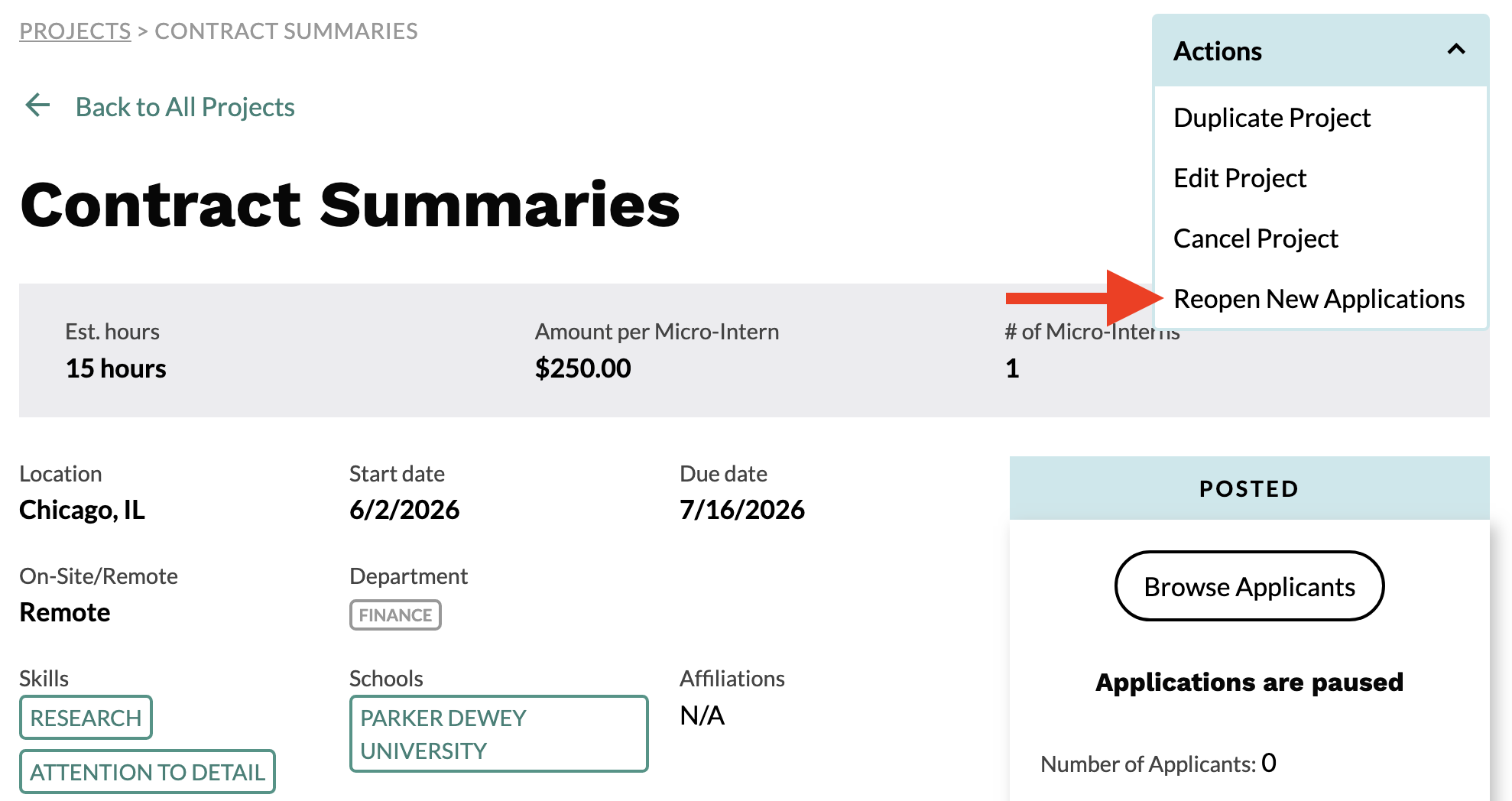
You can always reopen your project to receive more applications at any time. To do this, select the project from your dashboard. On the next screen, click on the Actions menu in the upper right corner of your screen and select Reopen New Applications.
Share Your Micro-Internship
Each Micro-Internship has a unique link that you can share with students or others. The project must be posted and approved by Parker Dewey in order for the link to be available. Additionally, viewers must have a Parker Dewey account and be logged into their account in order to view the Micro-Internship posting.
To access the shared link, in your dashboard, click on the project you wish to share. On the next screen, click on the Actions menu in the upper right corner of your screen and select Share Project.
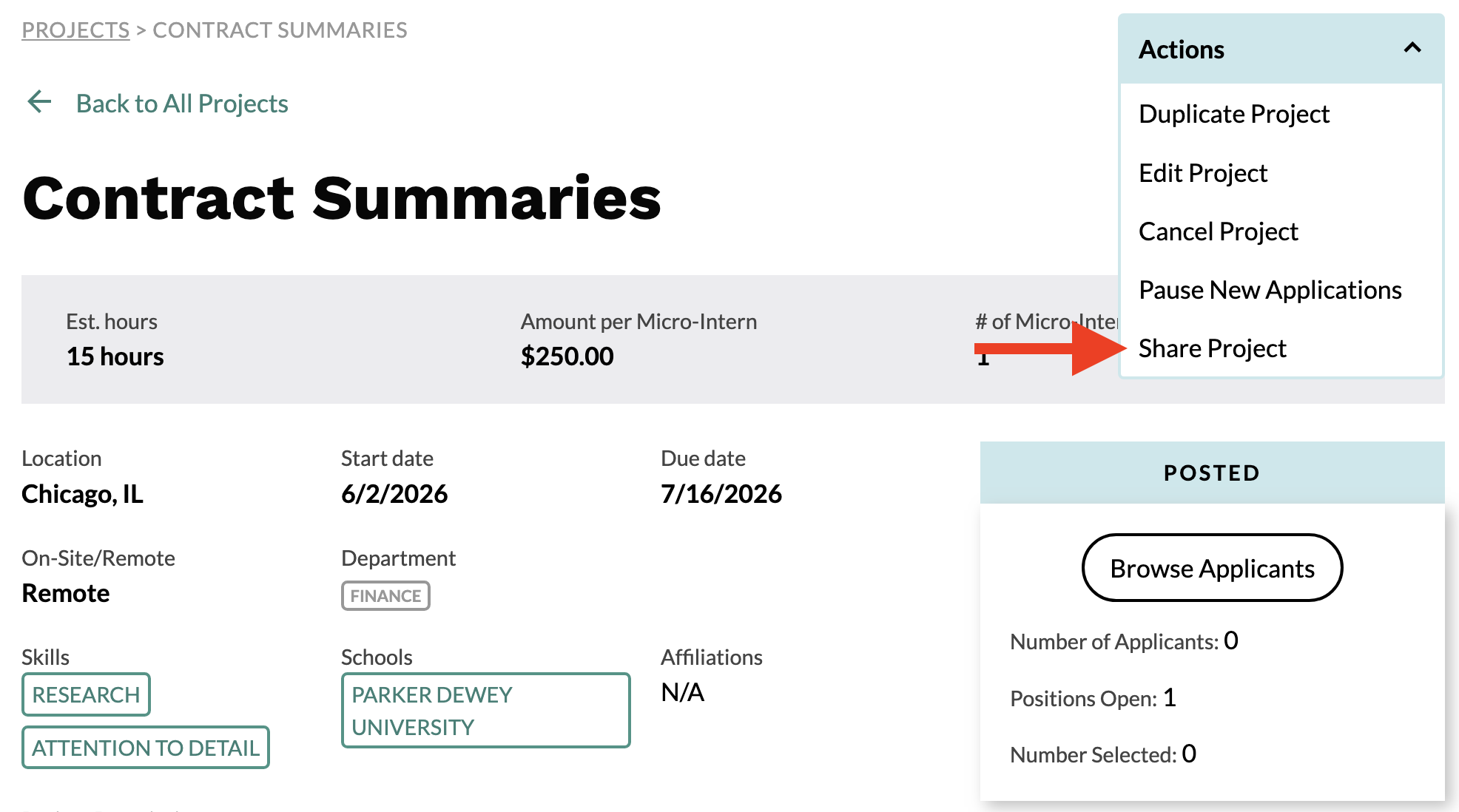 This will open a new screen with your project description as it would appear to a prospective applicant. Copy the URL from your web browser for that project in order to share it with anyone you wish.
Repost a Micro-Internship
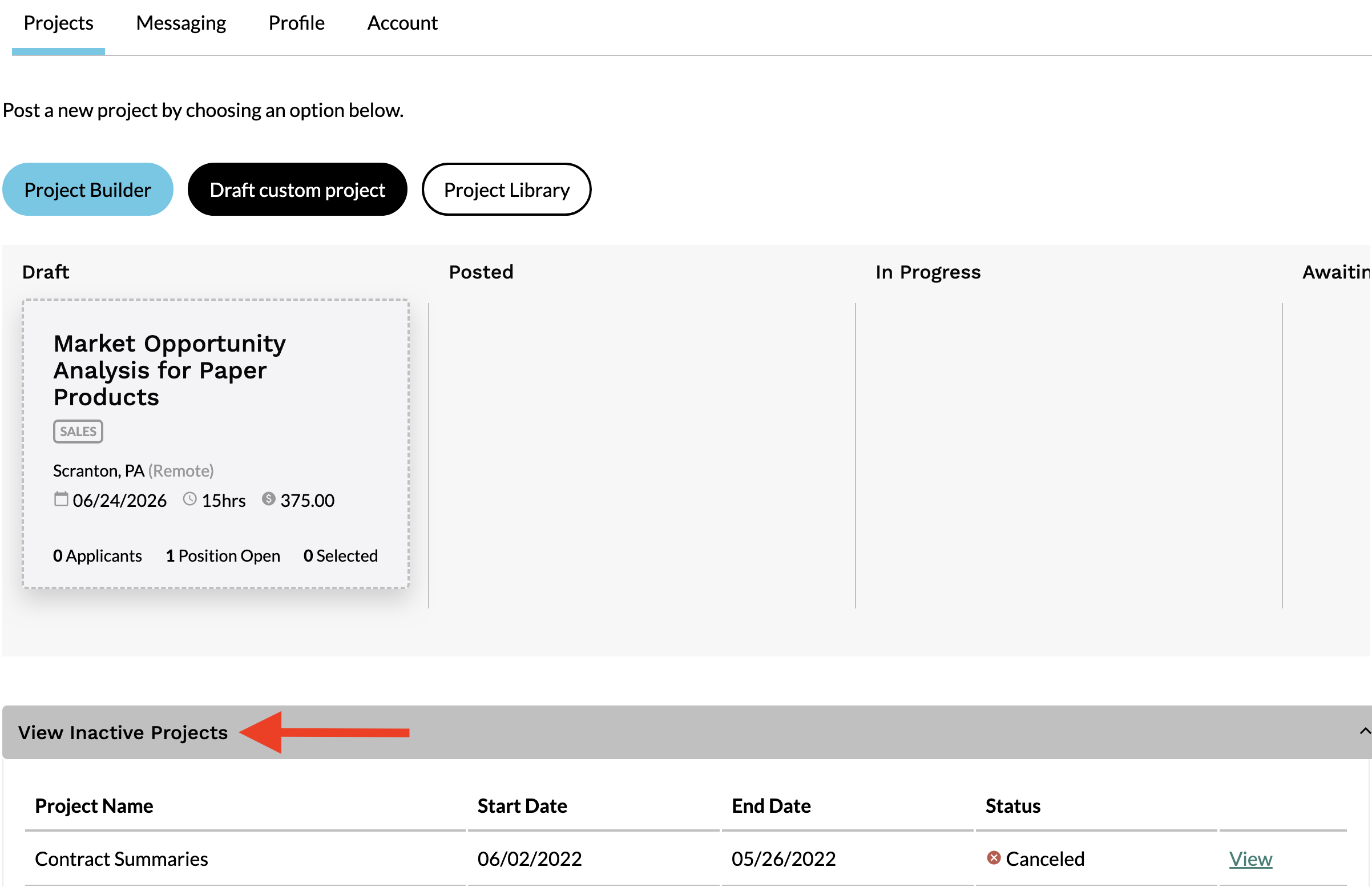
Completed or canceled Micro-Internships will appear in your dashboard under "Inactive Projects." Scroll to the bottom of your dashboard and click on "View Inactive Projects" to see a list of completed and canceled projects.
Select View next to the project you wish to repost.
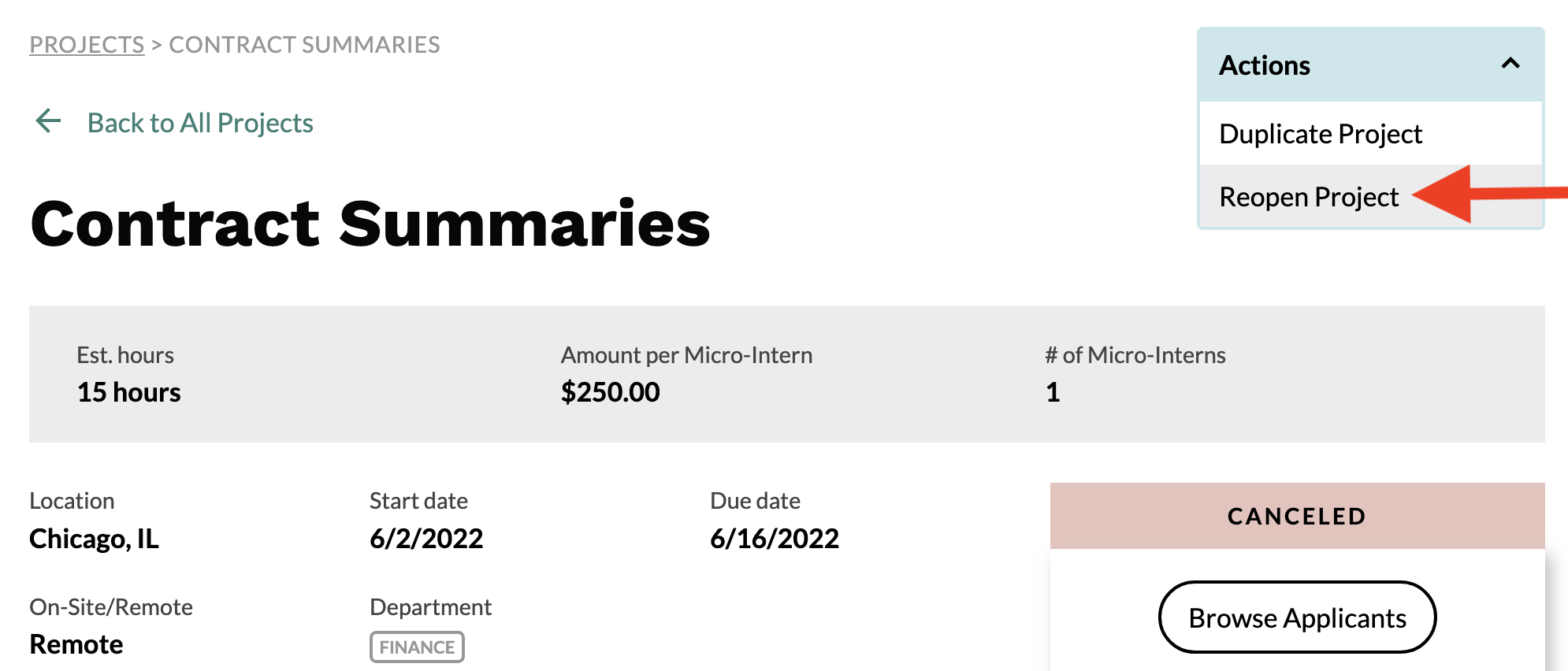
On the next screen, click on the Actions menu in the upper right corner of your screen and select Reopen Project.
Cancel a Project
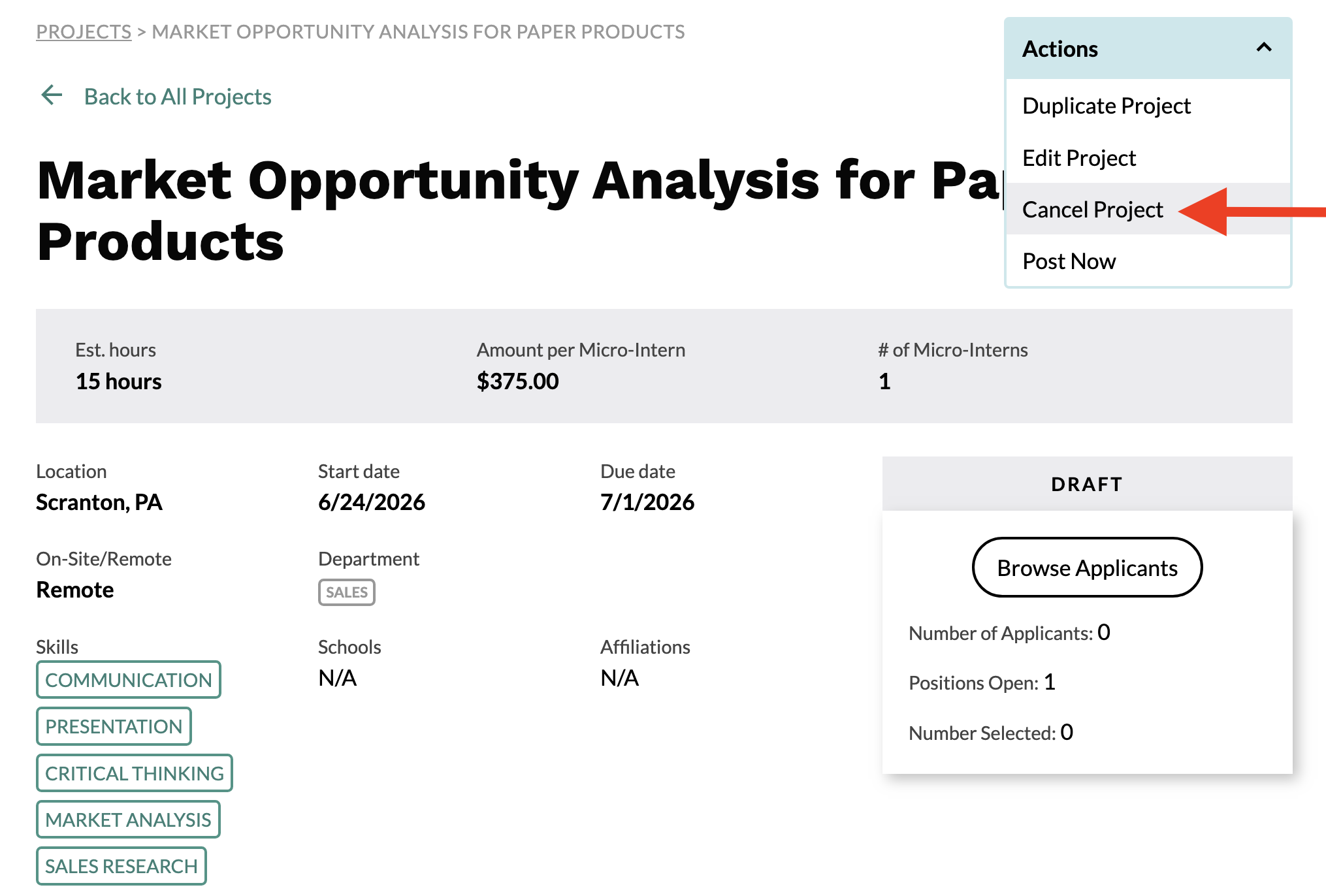
In your dashboard, click on the project you wish to cancel. On the next screen, click on the Actions menu in the upper right corner of your screen and select Cancel Project.
This project will now be listed under "Inactive Projects" in your dashboard. You can always update and reopen a canceled project at any time in the future.