
In the following section you will find information about:
- How do I create my account?
- How do I update my company's profile?
- How do I change my password?
- How do I deactivate my account?
- How do I reactivate a deactivated account?
To view all of the steps to create an employer account, watch the video below or click on one of the questions above to view information about that specific topic.
Creating a Parker Dewey Employer Account
Getting your company set up on Parker Dewey can be done in under 10 minutes! After navigating to our employer sign-up page, fill out the requested information, and click CREATE MY ACCOUNT at the bottom.
Be sure you select the "Post a Micro-Internship" option as pictured below.
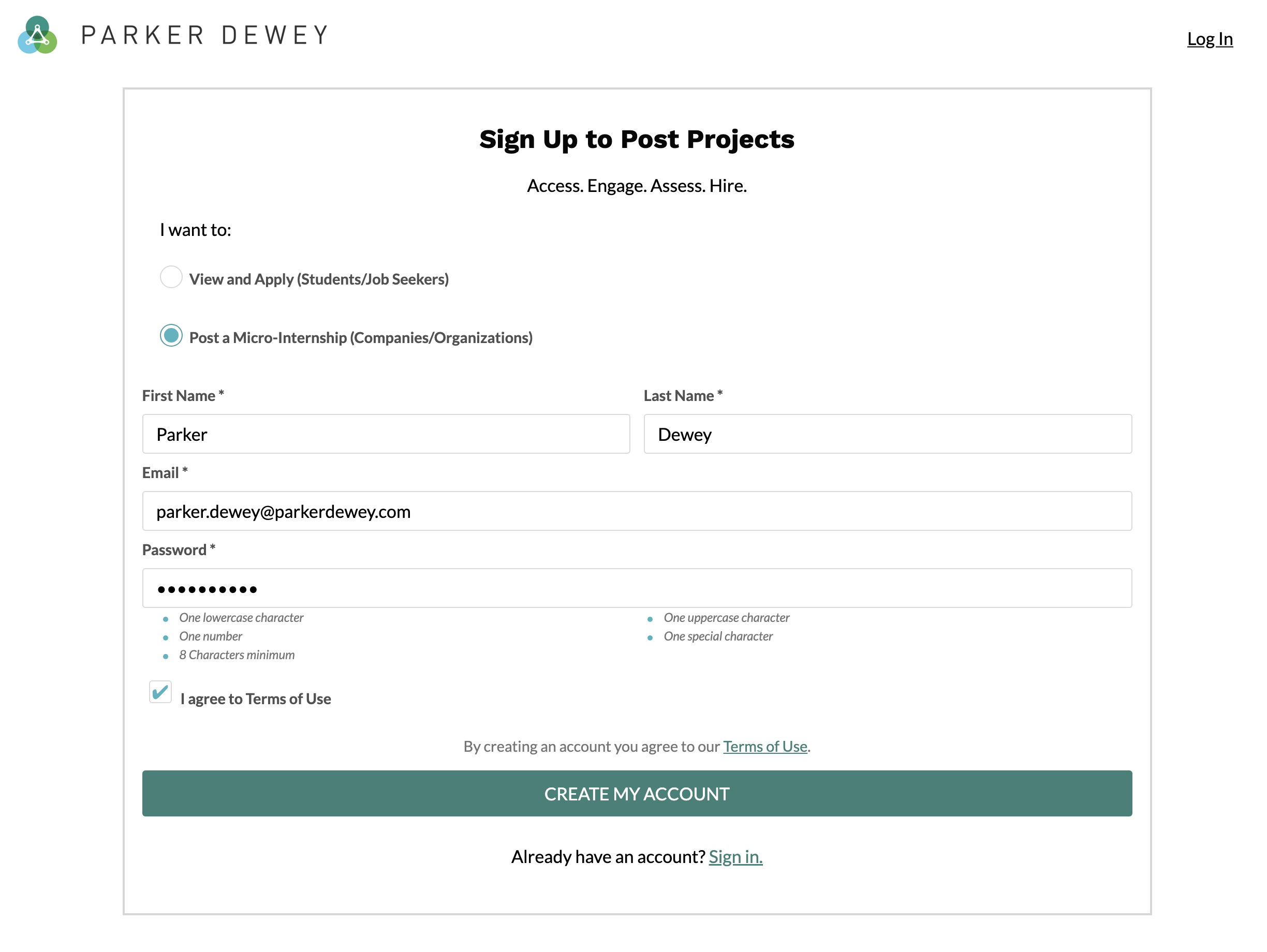 If you already have a Parker Dewey account, enter your login credentials to sign in.
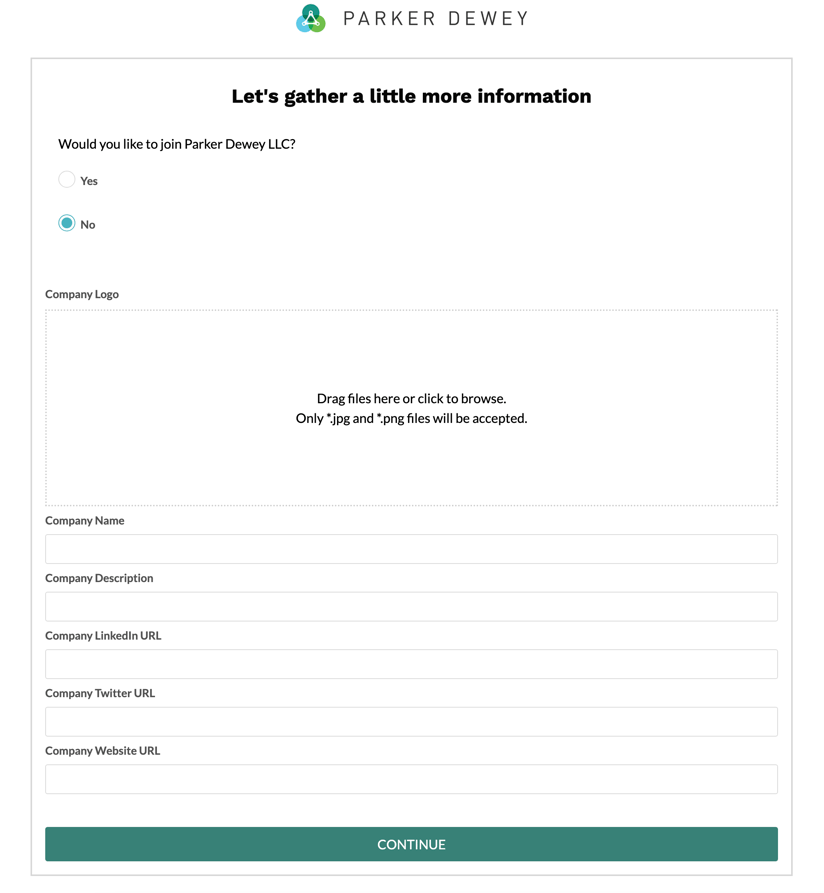
Once you complete the initial sign-up, you will be asked to provide information about your organization. If there is another user from your organization who has created a company account, you may be asked to join your company's profile. If not, you can create a new account for your company by completing the information pictured below.
We'll also ask you to confirm your account creation an associated email address:
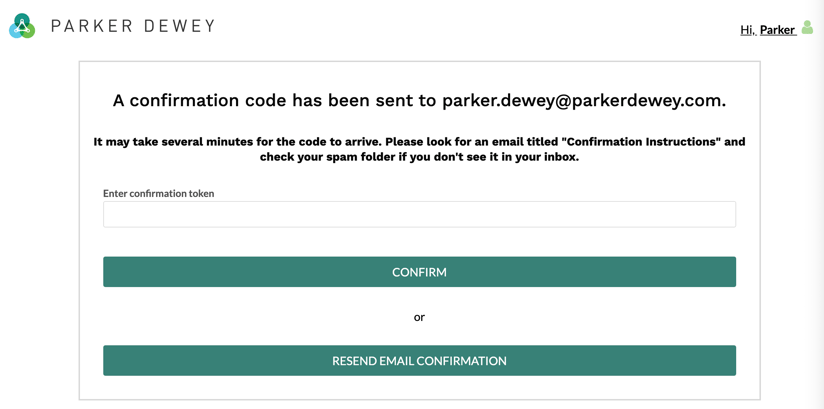
After you have confirmed your account, you are ready to post your first Micro-Internship!
Updating Your Employer Profile
Click on Profile from the menu bar at the top of your screen.
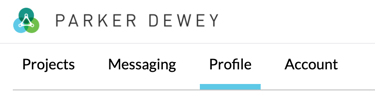
Click on the pencil to edit whichever section you wish (see red arrow in the screenshot below).
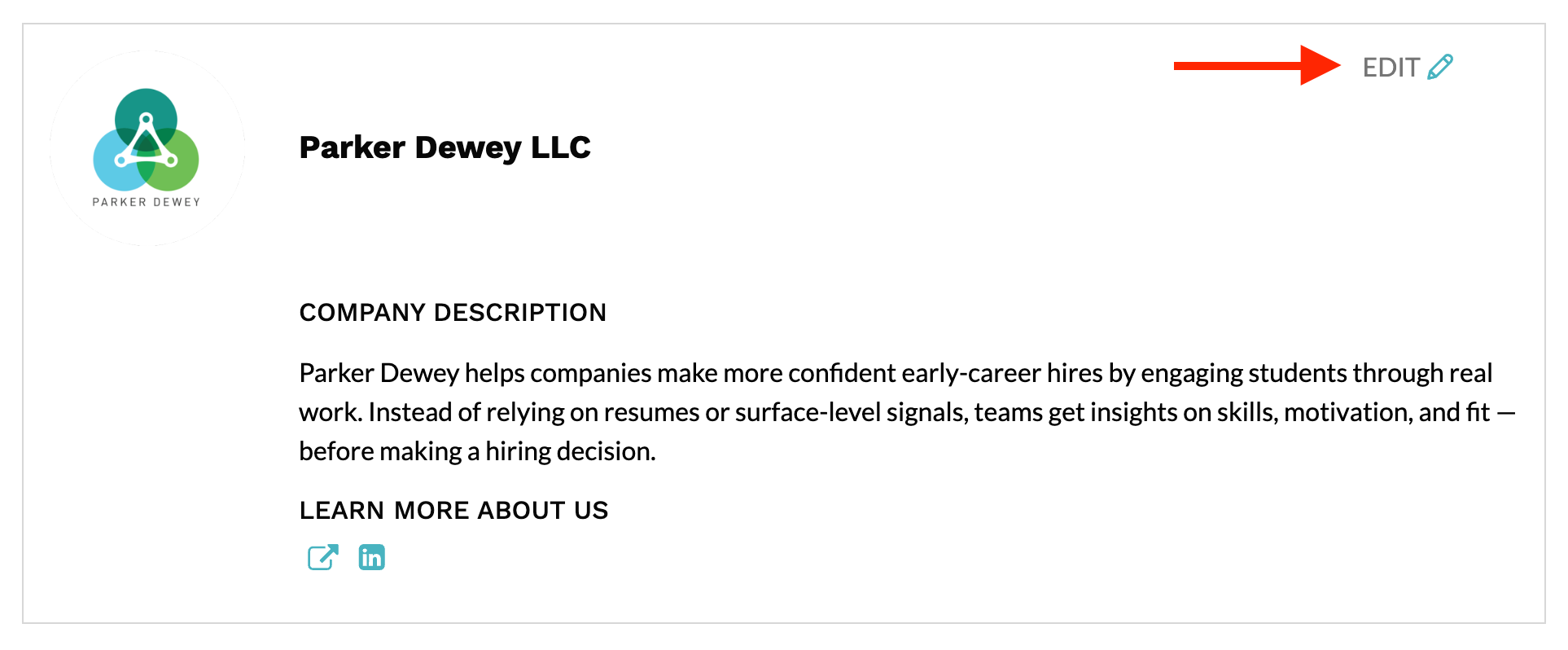 Within your employer profile, there are two sections you can update: information about you and information about your company.
Update Your Profile
Updating your profile will change information that is specific to you including your name; universities you've attended or are affiliated with; and affiliations.
To update this information, go to Profile > Edit and make whatever updates you wish. When you are finished, scroll to the bottom of the screen (past the About Your Company section) and select SAVE.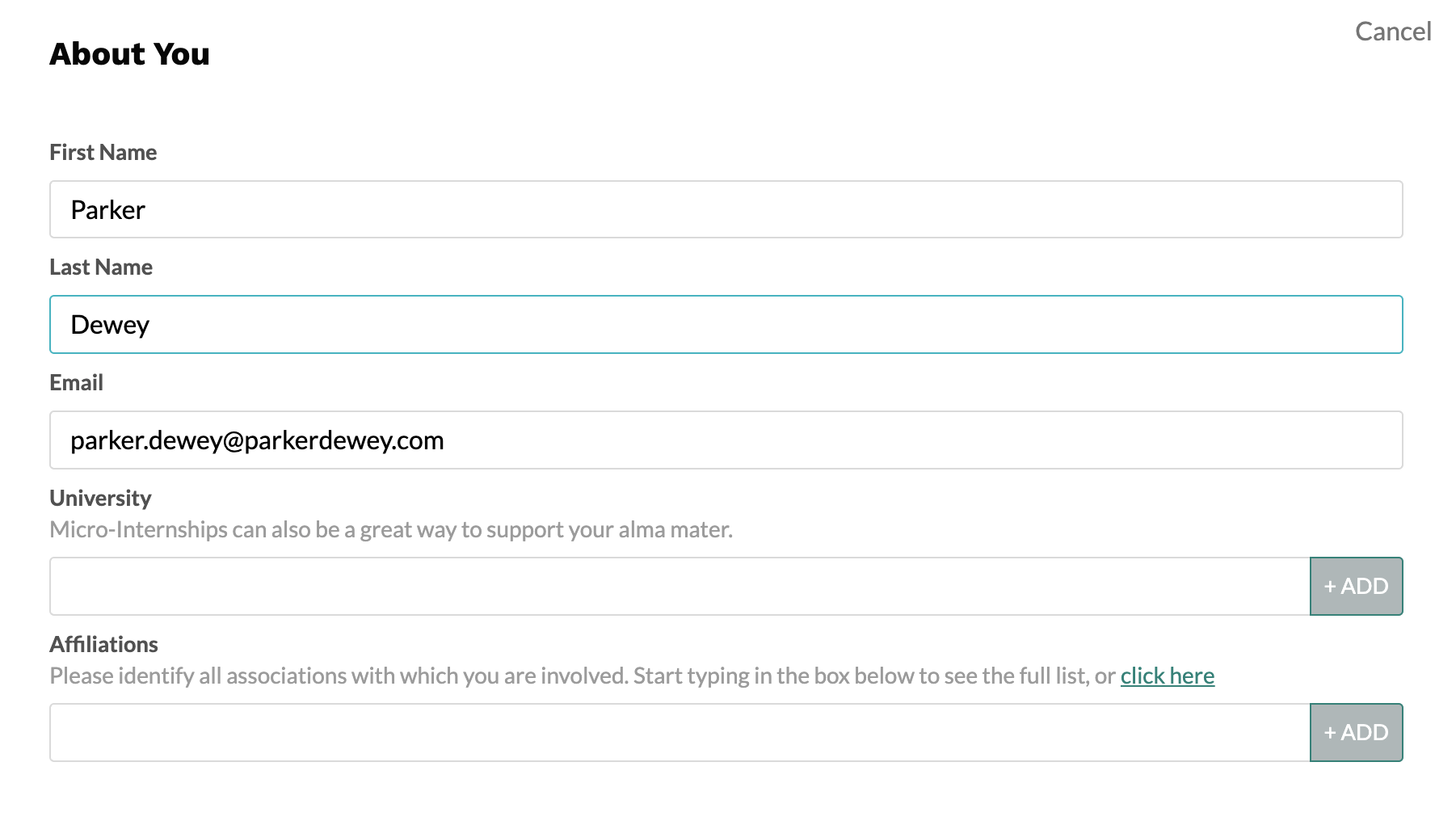
Update Your Company's Profile
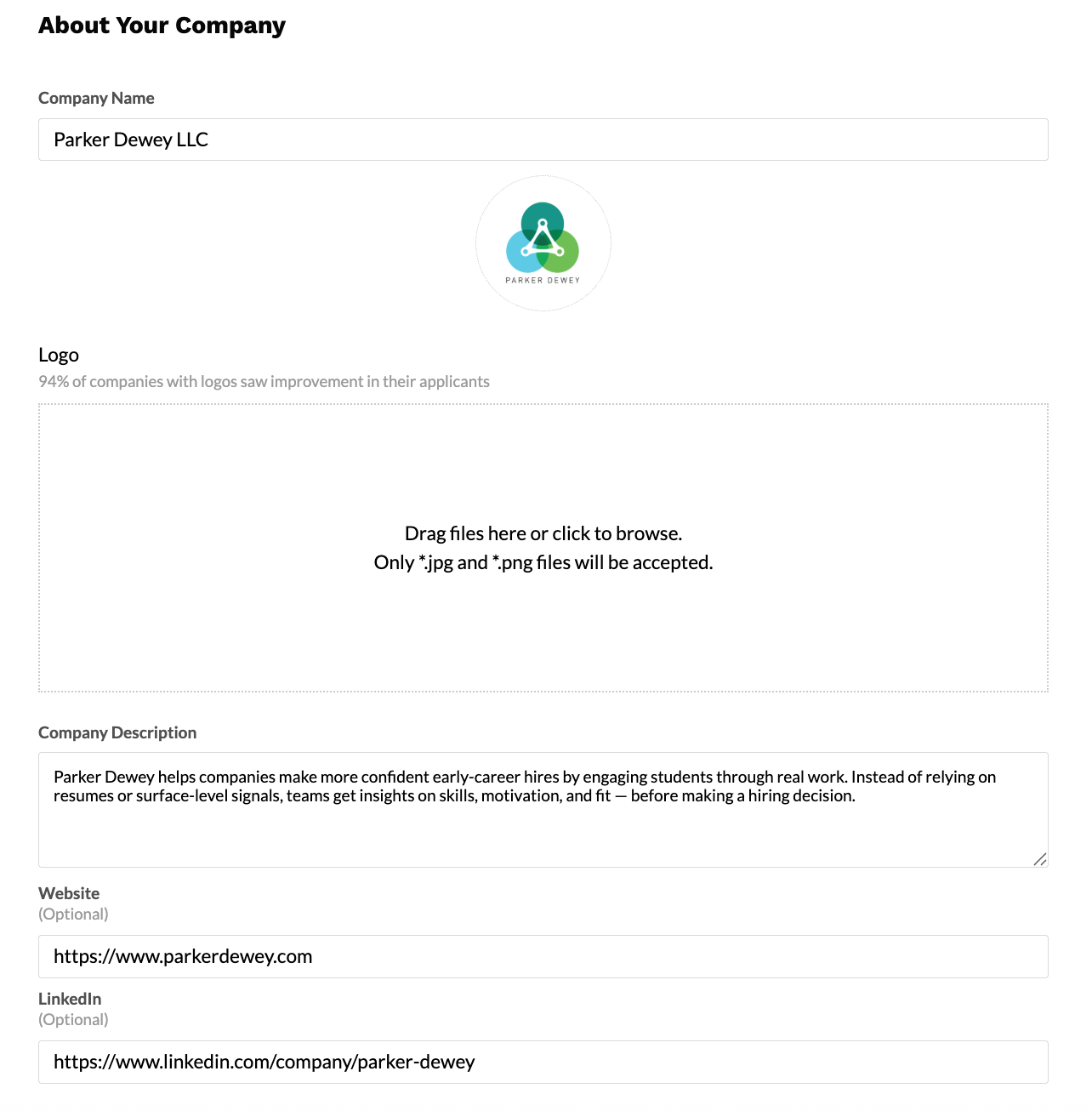
Updating your profile will change information that is specific to you including your name; universities you've attended or are affiliated with; and affiliations.
To update this information, go to Profile > Edit and make whatever updates you wish. When you are finished, scroll to the bottom of the screen and select SAVE.
Changing Your Password
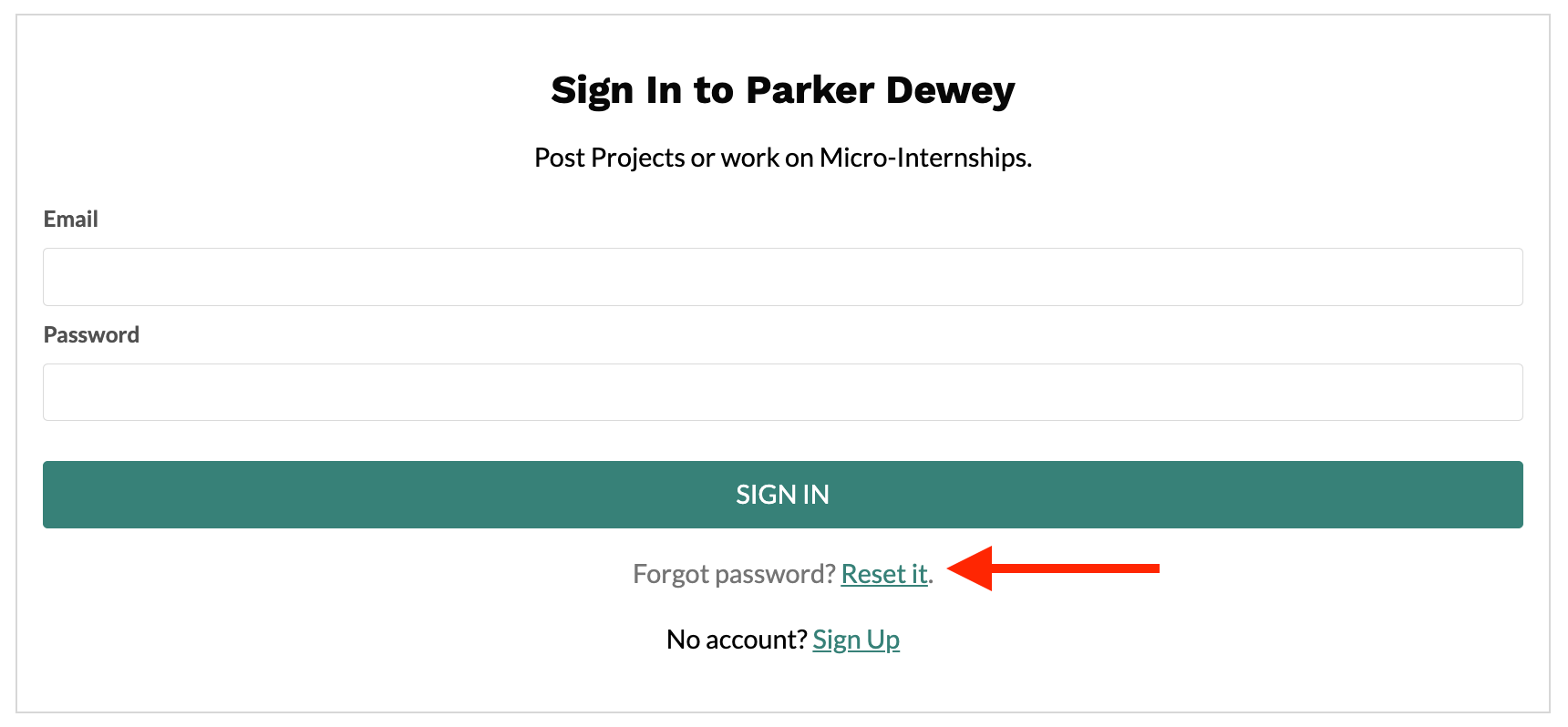
Log out of your Parker Dewey employer account. From the sign in screen, select the Reset Password link (see red arrow in the screenshot below).
Deactivating an Account
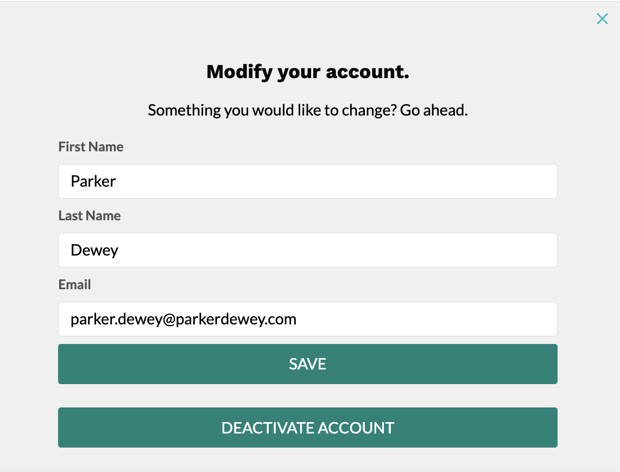
To deactivate your Parker Dewey employer account, select Account from the top of your Parker Dewey account. On the next screen, select DEACTIVATE ACCOUNT.
Reactivating a Deactivated Account
Once your account has been deactivated, you must contact the Parker Dewey Support Team to request that it be reactivated.